Amazon Key for No-API
Step-by-step guide to generate your Amazon authenticator key so HGR can keep auto-ordering Amazon-sourced products for your marketplace store even without API access.
Generate your Amazon key for No-API automation
Follow these steps in Seller Central to link your authenticator and enable auto-ordering.
Use your Amazon Seller Central account (not the buyer account) and finish 2FA setup so we can automate orders securely.
Complete these steps in Seller Central
1. Open your Amazon Seller Central account
Make sure you are in the seller portal, not your buyer Amazon account.
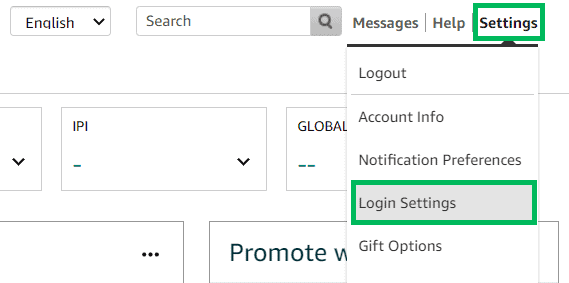
2. Go to Settings → Login Settings
Open the Login & Security area to manage two-step verification.
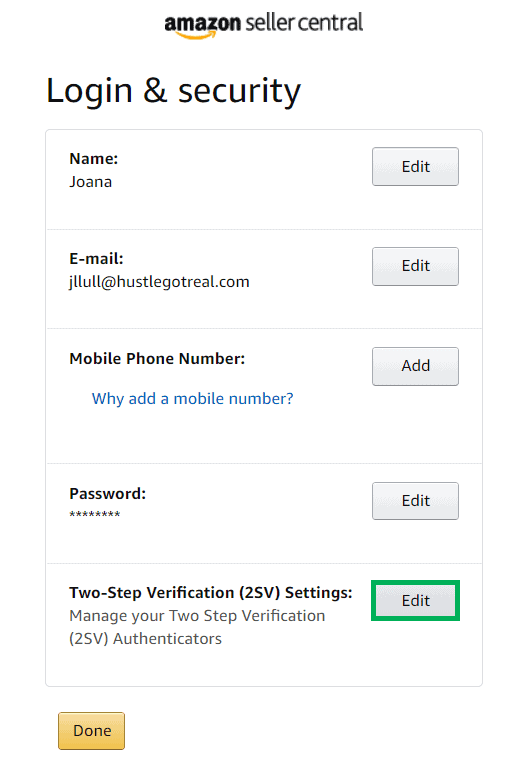
3. Select Two-Step verification → Edit
Start editing your authentication method to add the new key.
4. Click “Add new phone or authenticator app”
Amazon will let you add a new authentication method from here.
5. Download an authenticator app
Install Microsoft Authenticator or a similar app on your phone.
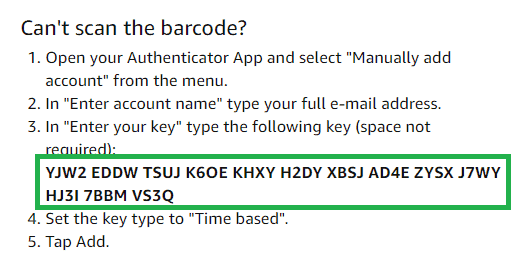
6. Choose “Can’t scan the barcode?”
Amazon shows the secret key you need. Copy it carefully for HGR.
7. Paste the key into HGR No-API settings
Open HGR auto-ordering configuration and paste the key from Seller Central.
8. Scan the QR code with your authenticator app
Use the app to capture the QR code Amazon provides.
9. Enter the one-time password (OTP)
The code refreshes every 60 seconds; type the current code to proceed.
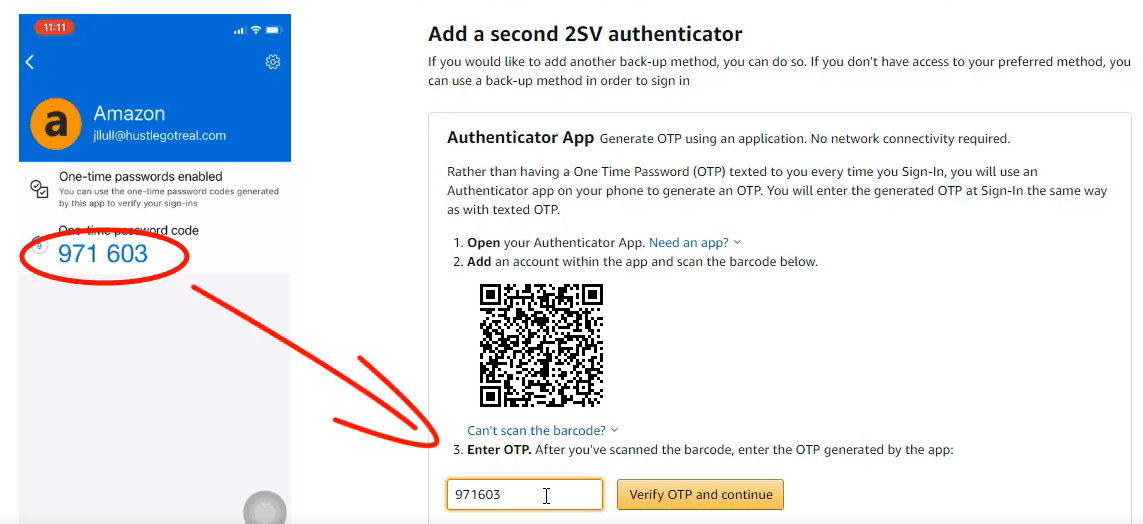
10. Verify OTP and set the authenticator as preferred
Complete the flow and confirm the authenticator app as your preferred method.
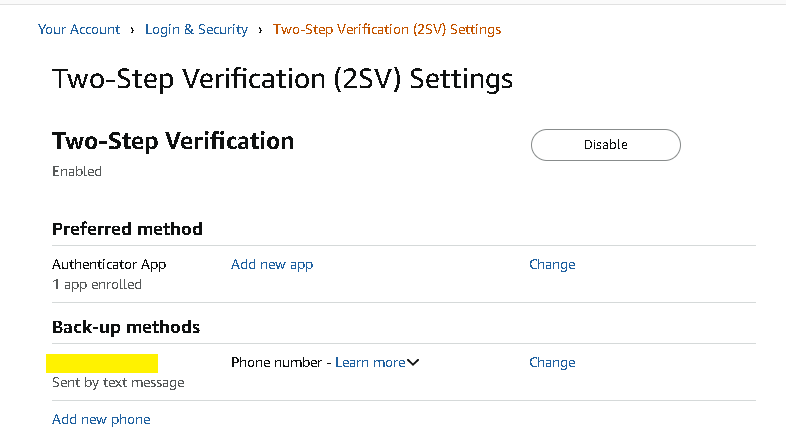
If any screen looks different, update your Seller Central app or clear cache before retrying.
Finish activating auto-ordering
Paste your Amazon key, verify the OTP, and keep orders automated without the API.