How to get your Amazon Key

Step-by-step guide to obtaining and configuring your Amazon API key for seamless automation. Learn how to enable auto-ordering, integrate with Amazon Seller Central, and unlock powerful dropshipping features that streamline your Amazon business operations.
Steps to get your Amazon Key
Follow these steps to set up 2FA, copy your Amazon key, and paste it into HGR auto-ordering.
Course lesson video
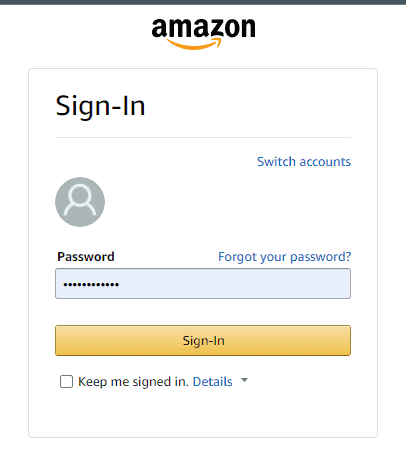
Access your Amazon account
Use your buyer (marketplace) account, not Seller Central.
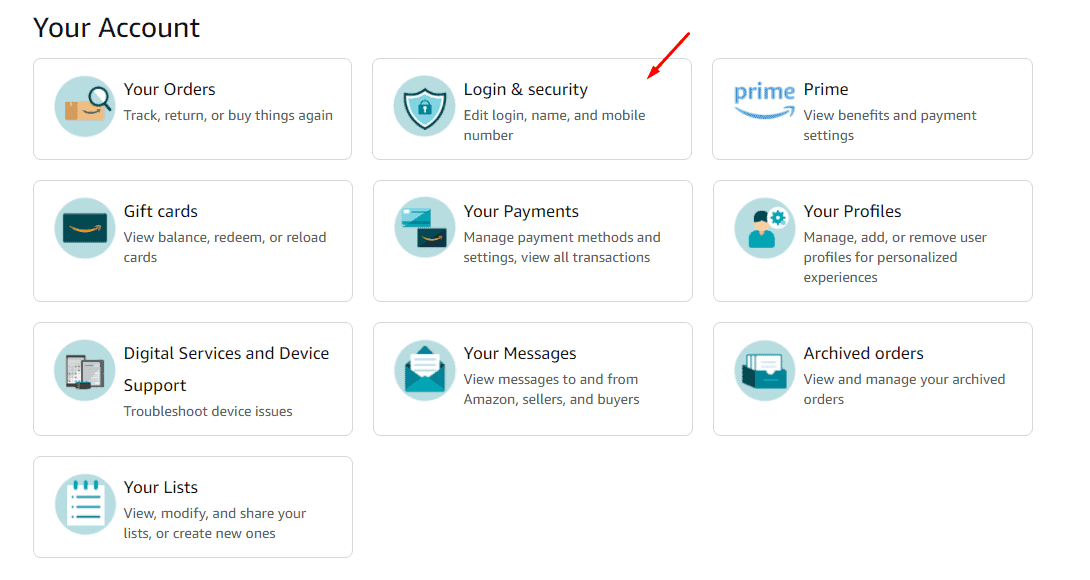
Go to Account → Login & Security
Open Account settings and select Login & Security.
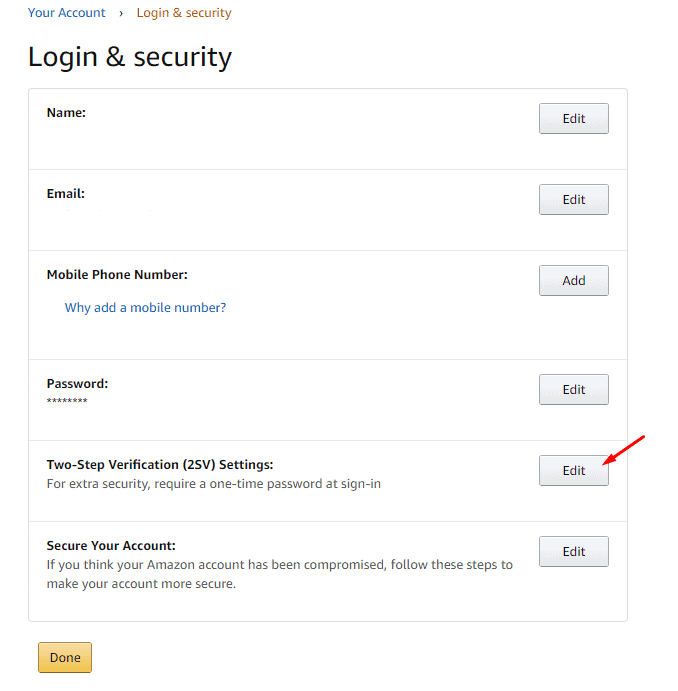
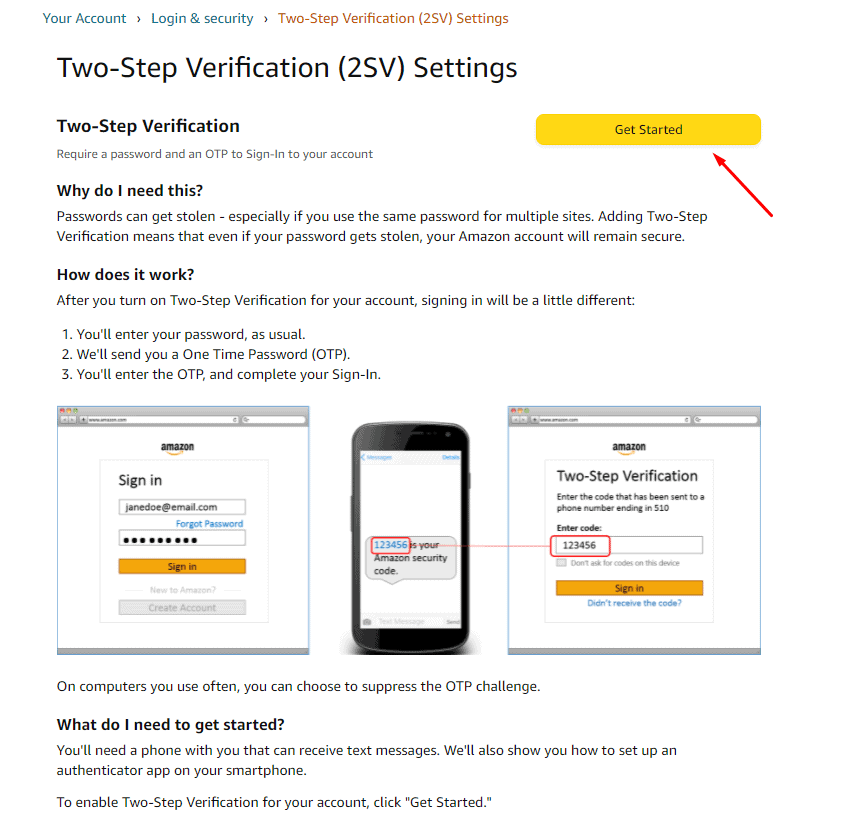
Two-Step Verification → Edit → Get Started
Find Two-Step Verification, click Edit, then Get Started.
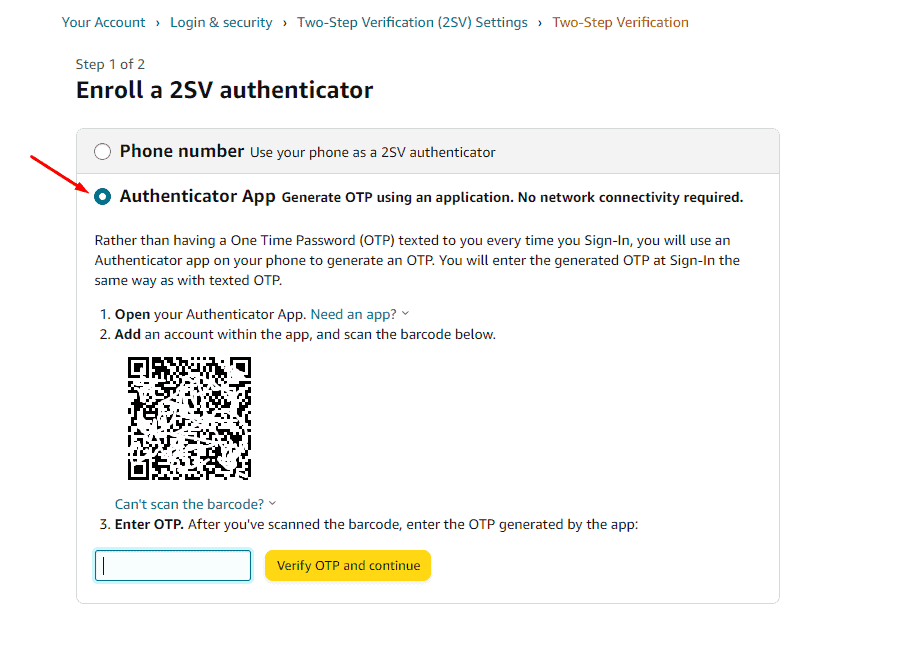
Choose Authenticator App
Select Authenticator App as your preferred 2FA method.
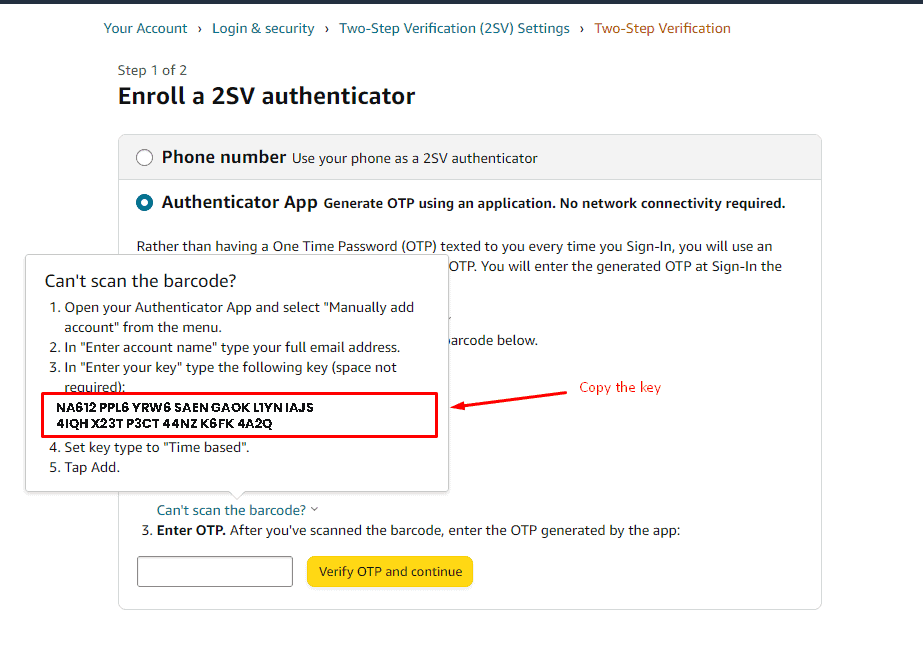
Can't scan barcode → copy the key
Copy the key shown and paste it into HGR auto-ordering configuration.
Open auto-ordering configuration
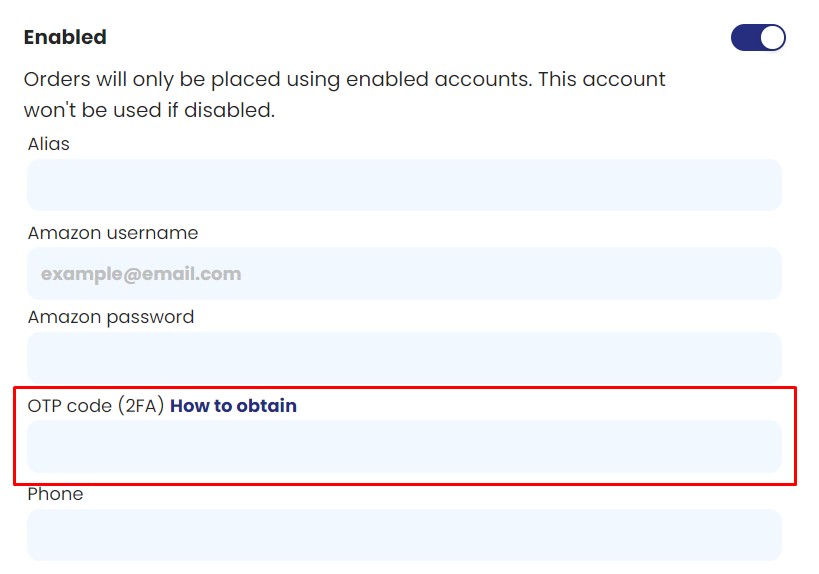
Paste it in the Auto ordering configuration
Go to Auto ordering configuration and paste your Amazon key.
Download an authenticator app
Install an authenticator app on your phone.
⚠️ Important: complete the remaining steps to activate the key.
Scan the QR code
Use the authenticator app to scan the QR code on screen.
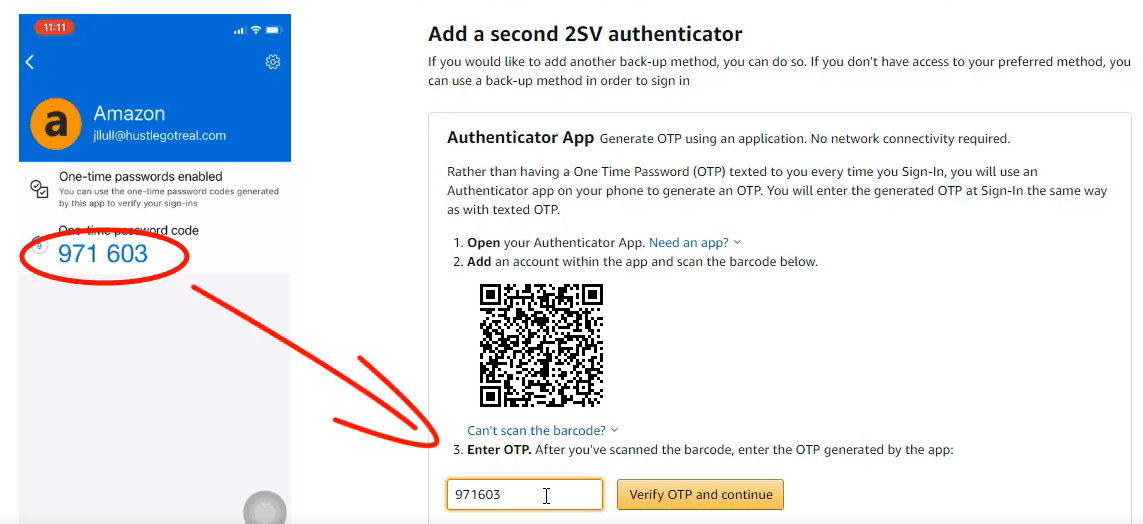
Enter the OTP code
Enter the one-time code from your authenticator app (it changes every 60 seconds).
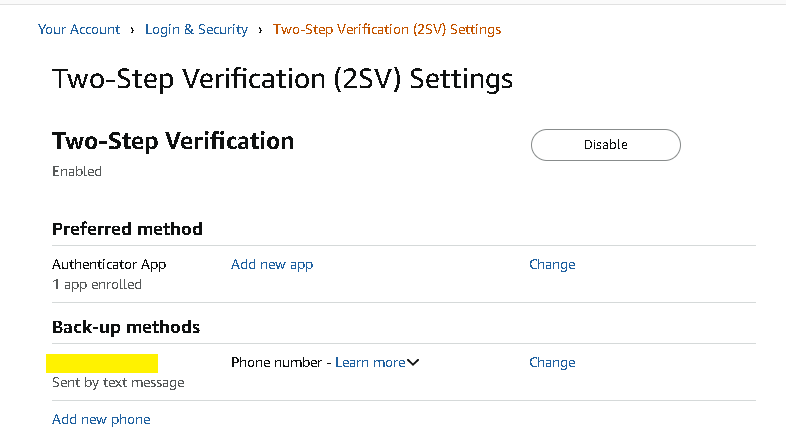
Add a backup method (SMS)
Choose the SMS option and enter your phone number.
Enter SMS OTP
Enter the OTP sent to your phone.
Verify the session OTP from app
Enter the session OTP displayed in your authenticator app.

Complete setup
Click Continue/Done to finish the 2FA setup. Your key is active.
Need help?
Contact support if you need assistance completing these steps.
7-Day Money-Back Guarantee